How to Use a VPN With YouTube TV (2026): Why It Blocks You, and What Works
If you are asking how to use a VPN on YouTube TV, the honest answer is that you can't, and you shouldn't try. YouTube TV's own help centre says that while you are connected to a VPN or proxy you won't be able to stream from it, and the YouTube Paid Service Terms, which every subscriber accepts, forbid misrepresenting where you live or trying to get around location restrictions. The only way a VPN and YouTube TV work together is by keeping YouTube TV out of the tunnel: switch the VPN off while you watch, or exclude the app with split tunnelling.
YouTube TV blocks streaming over a VPN or proxy, works only in the US, and checks where your device is. A VPN can't fix any of that, but it can still protect everything else on your phone or laptop.
Most pages ranking for this question are VPN roundups that tell you to pick a US server and try again. We read YouTube TV's help pages and the YouTube Paid Service Terms (the version effective from 11 February 2026) through a US connection on 12 October 2026, and built this guide around what they say: the location checks YouTube TV runs, how your home area works, what happens when you travel or move, and how to fix location errors without breaking the terms.
Can you use YouTube TV with a VPN?
No, for two separate reasons. The first is technical: YouTube TV's page on managing your home area says that while connected to a VPN or proxy, "you won't be able to stream content from YouTube TV", and it tells you to disable the VPN or proxy to clear the resulting playback errors. That rule also covers Primetime Channels and YouTube channels that choose to restrict playback. So a YouTube TV VPN setup that streams reliably is not something YouTube TV intends to allow.
The second is contractual. Section 2.3 of the YouTube Paid Service Terms says you agree not to present false, inaccurate or misleading information to misrepresent your place of residence, and not to attempt to circumvent restrictions on access to or availability of the service or its content. The YouTube TV section adds that its systems are "designed to withstand subscriber circumvention" and that any reported or suspected circumvention may lead to termination of your subscription or account. A VPN used to make YouTube TV think you are somewhere else is exactly that kind of circumvention.
None of this makes VPNs bad or illegal. It means YouTube TV is one app you leave outside the tunnel. Our explainer on why streaming services block VPNs covers the licensing logic that sits behind rules like these.
The location checks YouTube TV runs
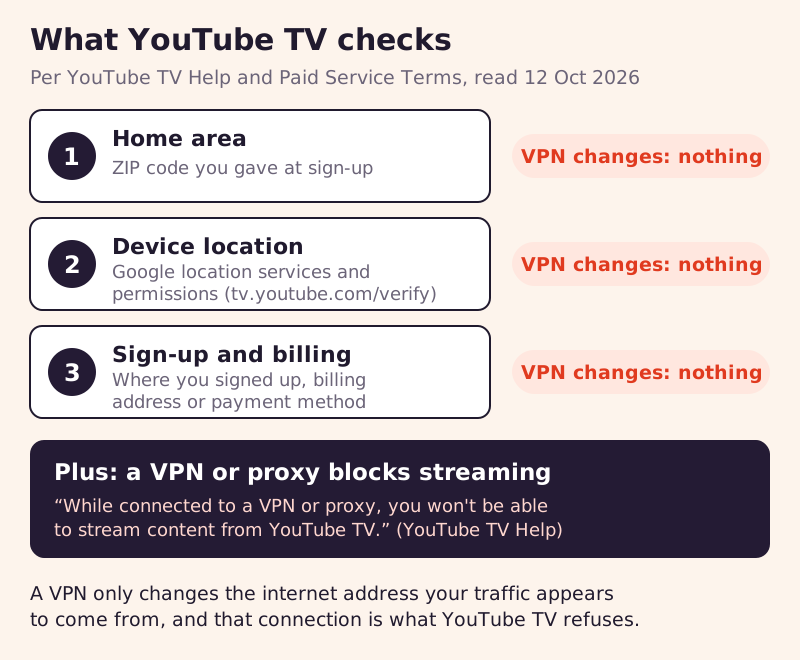
Readers who try a VPN and fail often can't work out why, because YouTube TV looks at more than one signal. Its help pages and terms describe three, and a fourth rule about VPNs sits on top.
- Your home area. At sign-up YouTube TV asks for your home ZIP code, and what you can watch and record is based on that home area.
- Your device's location. The terms say YouTube TV uses Google's own location-detection services and that the location of your device decides which content you may access. The help centre adds that it may ask you to confirm your area through your device's location permissions, and on phones you do this at tv.youtube.com/verify.
- Sign-up and billing signals. The terms say YouTube TV may also use the device's location when you signed up and the location of your billing address or payment method to verify where you are.
On top of those, the VPN and proxy rule applies whatever the other checks say. YouTube TV doesn't publish how it detects a VPN, so we won't guess at the method. What matters is the result: a VPN changes only the internet address your traffic appears to come from. It doesn't move your phone's location reading, your home ZIP code or your billing address, and the VPN connection itself is grounds for YouTube TV to refuse playback.
Home area: what it is and how often you can change it
Your home area decides your local channels, and it is the setting people most often get wrong when they move or travel. YouTube TV sets it from the ZIP code you give at sign-up and can confirm it with your device's location. While you are away from it, you can watch programming local to where you are, but you can't watch or record the networks local to your home area.
The limits on changing it are strict, and they are why a VPN can't help even inside the US:
- Twice in 12 months. You can't change your home area if you have already changed it twice in the last 12 months.
- Only from the new area. You can't change it unless you are currently located in the new home area.
- Check in every 3 months. YouTube TV asks frequent travellers to watch from home at least once in any 3-month stretch, so it can keep serving the correct local networks.
- Every 30 days for MLB. Baseball fans should use it in the home area once every 30 days to avoid game-related viewing restrictions.
Household sharing adds a related check. Each subscription includes 5 extra accounts, but the terms say all shared accounts must belong to one household, as determined by electronic check-ins every 30 to 90 days. A family member who is away from home for months may find their access affected for that reason, not because of a VPN.
Scenarios: road trip, abroad and moving house
The same rules play out very differently depending on where you are. This table covers the situations readers ask about most.
| Situation | What YouTube TV allows | Does a VPN help? |
|---|---|---|
| Road trip inside the US | Local networks where you are, national networks, your recordings; no home-area locals | No; a VPN blocks streaming |
| Travelling abroad | No programmes at all | No; using one breaks the terms |
| Moved house in the US | Change your home area from the new area, up to twice in 12 months | No; you must be physically there |
| Second home or snowbird | Watch locals where you are; check in at home every 3 months | No |
| VPN left on at home | Streaming stops until the VPN or proxy is off | It is the cause |
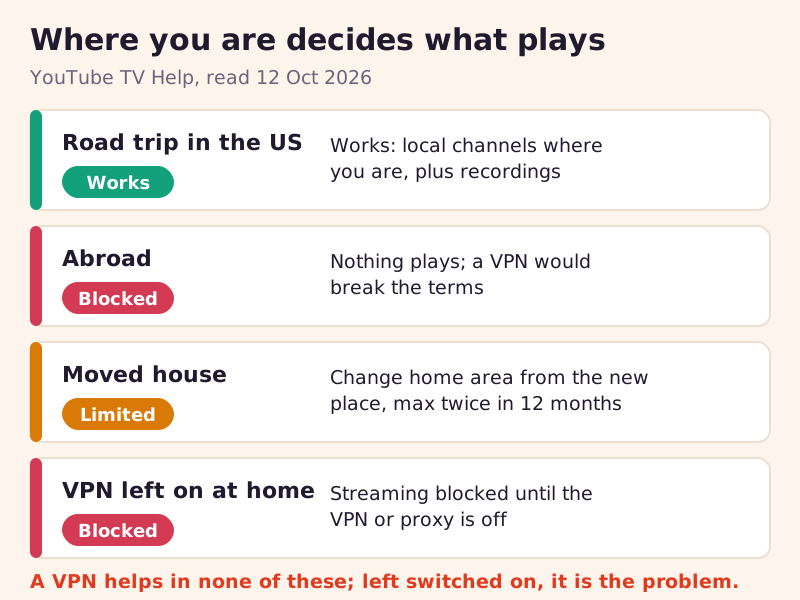
Two rows deserve a closer look. On a domestic trip YouTube TV keeps working, but it swaps your home channels for the local stations where you are, and you can't record local programming outside your home area; your library of recordings stays available. Abroad there is no partial service: YouTube TV's travel page says you can't access any programmes on YouTube TV while travelling internationally. Both behaviours are by design, and both are the reason a VPN is the wrong tool.
Why it says you're in a different area, and how to fix it
Location errors on YouTube TV usually come from one of a handful of causes, and each has a fix that stays inside the terms. Work through them in this order:
- Turn off any VPN or proxy, including VPN apps set to connect automatically and VPNs running on your router. YouTube TV says disabling them clears the related playback errors.
- Check location permissions for the app or browser. The help centre points to your browser's or device's location settings and suggests clearing cache and cookies if problems persist.
- Verify your location at tv.youtube.com/verify on a phone, allowing the site to read your device's location, or update the current playback area from the TV app if you are travelling.
- Use a different network if you are at work or school. On a managed Chrome device, the administrator may control location settings, so you may not be able to change them yourself.
- Change your home area only if you have actually moved, from the new location, remembering the twice-in-12-months limit.
If YouTube TV still shows the wrong area after all of that on an ordinary home connection, contact its support team. A VPN would only add a second problem on top of the first.
Travelling abroad: pause instead of paying for nothing
Because YouTube TV doesn't work outside the US, a long trip abroad means paying for months you can't use. YouTube TV listed its main plan at $82.99 a month and its Sports + News plan at $71.99 a month, before tax, on its US sign-up page on 12 October 2026, with introductory offers for new members that change often.
The better option for most travellers is the pause feature. YouTube TV lets you pause a membership for anywhere from 4 weeks to 6 months. The pause starts at the end of your current billing cycle, nothing new is recorded while paused, and your existing recordings are kept until the pause ends, subject to the usual 9-month expiry. When the pause ends, billing restarts at your normal monthly price, and you can resume early at any time.
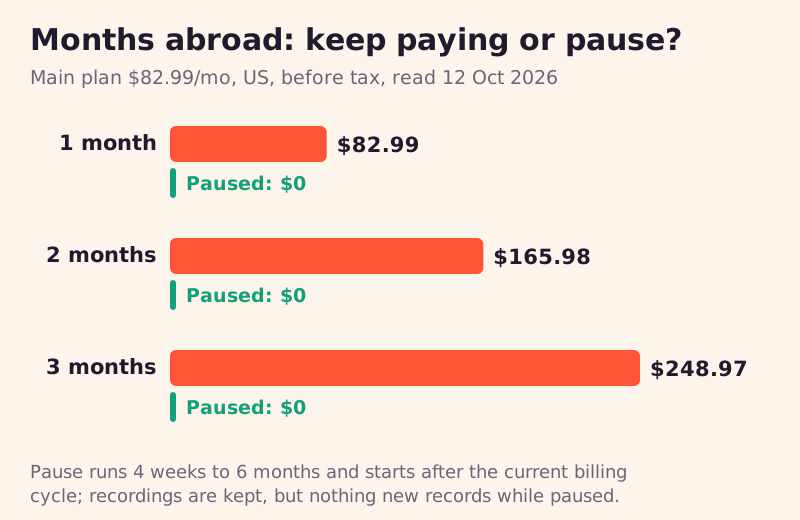
Plan the timing: because the pause begins only when your current billing period ends, set it a few days before you leave. If you will be away for less than 4 weeks, the minimum pause, compare that against simply cancelling, though restarting may cost you promotional pricing and your recordings, which YouTube TV says expire 21 days after a cancellation takes effect. For your other subscriptions, our guide to watching your streaming abroad covers what each service allows.
Where a VPN still helps a YouTube TV subscriber
A VPN is still worth having on the phone or laptop you watch on; it just has to leave YouTube TV alone. On hotel, airport or café Wi-Fi, it keeps the network operator and other guests from reading your traffic or seeing which sites you visit. The trick is to make the VPN and YouTube TV coexist, and split tunnelling, which lets chosen apps bypass the tunnel, is how you do that. Here is where each of the three big providers offers it, according to their own support pages:
- NordVPN: per-app split tunnelling on Windows, Android and Android TV. Its split-tunnelling article doesn't cover macOS or iOS.
- ExpressVPN: split tunnelling on Windows, macOS, Linux and Android, by app; on iOS it can bypass the VPN only for specific website addresses.
- Surfshark: its Bypasser feature on iOS, Android, Windows, macOS and its browser extension.
Exclude the YouTube TV app, then confirm it works by playing something with the VPN connected. Where you have no per-app control, such as NordVPN on an iPhone, which its split-tunnelling guide doesn't cover, the simple rule is to disconnect the VPN before you open YouTube TV and reconnect afterwards. If you are choosing a VPN for this kind of everyday use, NordVPN, ExpressVPN and Surfshark all offer a 30-day money-back window on a first purchase, as their own sites stated on 9 October 2026. Those three are affiliate links: ReelRoam earns a commission if you subscribe through them. None of the three will make YouTube TV play over a VPN, and we don't claim otherwise.
Edge cases
A VPN on your router. A router-level VPN tunnels every device on the network, including your TV, so YouTube TV on the big screen stops working. Exclude the TV in the router's VPN settings, if they allow it, or switch the router's VPN off while you watch. For where those settings tend to sit on common hardware, see streaming device VPN setup. To compare providers for other services, see our best VPN for streaming page.
Smart TVs and streaming sticks. Many can't run a VPN app at all, which is convenient here: the TV reports its real location. If yours has a VPN app installed, check it isn't connecting automatically at start-up.
NFL Sunday Ticket. If you add Sunday Ticket through YouTube TV, its own terms repeat the rule: you agree not to misrepresent your country of residence or circumvent restrictions on access, and some games can be blacked out locally.
Smart DNS services. These change how certain lookups are routed rather than encrypting your traffic, but their purpose is still to present a location you're not in. Read against section 2.3 of the terms, we'd treat them the same way as a VPN.
Group viewing. The terms say YouTube TV accounts are for personal, non-commercial, residential use only and can't be used in any group viewing space, whatever network you are on.
YouTube TV and VPNs: quick answers
Can you use a VPN with YouTube TV?
Does YouTube TV work outside the US?
How many times can you change your YouTube TV home area?
Why does YouTube TV say I'm in the wrong location when I'm not using a VPN?
Can I watch my home local channels on YouTube TV while travelling in the US?
See the bigger picture: the best VPNs for streaming, ranked by track record, or start with a VPN for Netflix.